
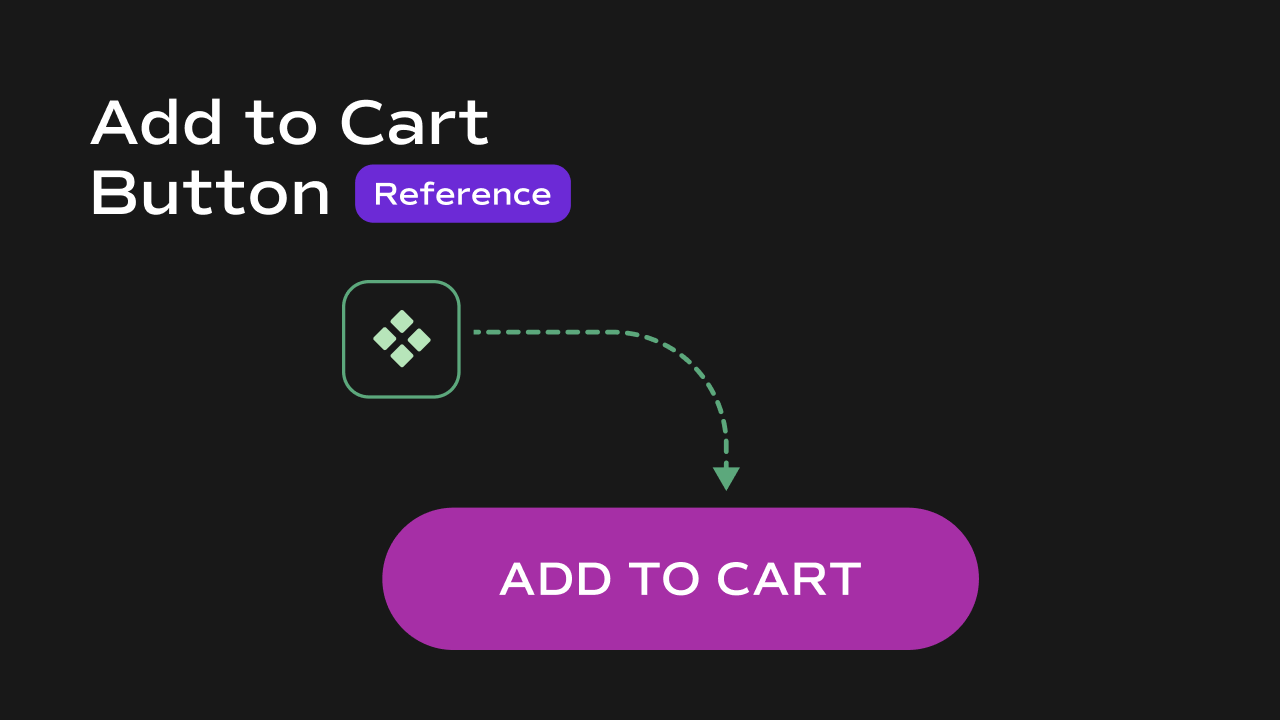
 A Shopify-connected add-to-cart button for Framer that reads the currently selected variant from the URL, adds it to the
 localStorage cart, and optionally shows a toast notification confirming the action.
What It Does
The Add to Cart Button is a fully styled, animated button that handles the complete add-to-cart flow for a Shopify product. It reads the active variant from the URL, finds its details from the variants data, and writes the item to thelocalStorage cart — incrementing the quantity if the item is already in the cart.
Key behaviors at a glance:
- Reads active variant from URL — on click, reads the
?variant=URL query parameter to determine which variant to add. Updates automatically when the URL changes (e.g. when the user switches variants). - Adds or increments — if the variant is already in the cart, its quantity is incremented by
1. If it’s new, it is added as a fresh cart entry with quantity1. - **Writes to **
localStorage— saves the updated cart tolocalStorageunder thecartkey and dispatches acartUpdatedevent to keep all other cart components in sync. - Toast notification — optionally shows a floating toast with the product image, title, and variant name after a successful add. The toast position and offset are fully configurable.
- Loading state — while the item is being added, the button displays a configurable loading label and is temporarily disabled to prevent double-clicks.
- Animated button — includes a subtle scale-down on tap and a border-radius transition on hover via Framer Motion.
Property Controls
All controls are accessible in Framer’s right panel when the component is selected. They are grouped into seven sections: Store ID, Product ID, Product Title, Variants, Image URLs, Texts, Styles, and Toast Layout.Store ID
Product ID
Product Title
Variants (CMS)
Image URLs (CMS)
Texts
Styles
Controls the visual appearance of the button.Toast Layout
Controls the confirmation toast shown after adding an item to the cart.
Offset — fine-tunes the toast position relative to the screen edges:
Notes
- The button does nothing if Product ID is not set — always connect this from CMS.
- The active variant is read from the
?variant=URL parameter. If no variant is selected when the button is clicked,selectedVariantwill benulland the variant lookup will fail silently. Make sure a variant picker is on the same page. - The cart item written to
localStorageincludes:productId,variantId,title,variantTitle,price,quantity,selectedOptions, andimage. - After every add, a
cartUpdatedevent is dispatched onwindow, keeping the Cart Item Counter, Cart State Controller, Cart Product List, and Cart Total Price all in sync automatically. - The toast notification is rendered using the Sonner library and shows the product image, title, and variant name.